Turbo Cleaner
- 3.6
- Rating
- 100.00K
- Installs
- Free
- Price

 Analysis by App-foxy
When a phone starts feeling crowded, the problem is rarely one dramatic file. It is usually a mixture of forgotten downloads, temporary leftovers, duplicate-looking items, and apps that no longer earn their place. Turbo Cleaner, a free tools app from JTR Labs, is aimed at that ordinary maintenance job. I approached it as a first-time user rather than expecting a miracle button, and that is the right mindset: its value comes from making cleanup and app organization easier to approach, not from replacing careful decisions.
The app is available for everyone and supports Android 7.0 or later. Its current version is 1.0.1, and it has passed the early adoption stage with over one hundred thousand installs. A 3.6 average from 323 ratings suggests a mixed but reasonably interested audience, which matches my impression: this is a straightforward utility that can be useful when its suggestions fit your habits, but it still deserves a quick review before you approve anything.
What to expect from Turbo Cleaner
The central experience is divided between sweeping away unwanted files and bringing some order to the apps on your device. That combination matters because storage problems and app clutter often arrive together. Someone who downloads many images, tries several free games, or keeps old tools installed may need both kinds of housekeeping rather than a single storage scan.
You May Also Like

 Blood Strike: 2.5 Anniversary
Blood Strike’s Loadouts Turn Every Drop Into a Tactical Gamble
A close look at Blood Strike’s custom loadouts: how fast access to signature weapons reshapes its battle royale rhythm, rewards preparation, and narrows the gap between fights.

 Pandora - Music & Podcasts
Pandora’s Music Is Easy to Start, but Harder to Recover
Pandora’s strength is its low-effort path from a seed to a station. Its weak spot is how much confidence it asks you to place in connection, setup, and quiet recovery.

 8 Ball Pool
 Is Built on Rivalries, Rematches, and Routine
A close look at the rivalries, rematches, shared routines, and unanswered safety questions that turn a quick pool match into a persistent mobile community.

 Samsung Music
’s Quiet Strength Is Playing What You Already Own
Its reach comes less from spectacle than from dependable access to a personal library. That simplicity is both the app’s strongest retention engine and its ceiling.

 AccuWeather: Weather Radar
AccuWeather Review: A Quick, Clear Forecast for Everyday Decisions
For everyday plans, the best forecast is the one you can understand quickly. AccuWeather makes rain timing, radar, and local conditions easy to act on, with a few trade-offs.

 Hill Climb Racing
Why Hill Climb Racing Still Turns Crashes Into One More Run
A tiny car, a bumpy hill and one more upgrade: Hill Climb Racing keeps resurfacing because its simple chaos makes every near-miss feel personal.
More From Our News Desk



I would not install it expecting a dramatic transformation after one tap. Cleaner apps work best when they help you identify low-value items, then let you decide what should go. The useful question is not simply “how much space can I remove?” but “which items can I safely stop carrying?” Turbo Cleaner is most appealing to people who want a visible starting point for that decision.
The app’s free price makes it easy to try without turning the first cleanup into a purchase decision. That is helpful for a family phone, an older handset, or a device belonging to someone who does not want to study Android’s storage menus. At the same time, free does not mean every recommendation should be accepted automatically. I still treat a cleanup result as a shortlist, not as permission to erase everything it presents.
Its tools category also sets the right expectation. This is a maintenance companion, not a full file-management replacement, backup service, or security suite. If your main concern is moving documents into carefully named folders, you will probably be happier with the phone’s file manager. If you want to inspect exactly where every large video lives, a dedicated storage analyzer may offer a deeper view. Turbo Cleaner makes more sense when you want a simpler route to routine tidying.
The first setup should be deliberate
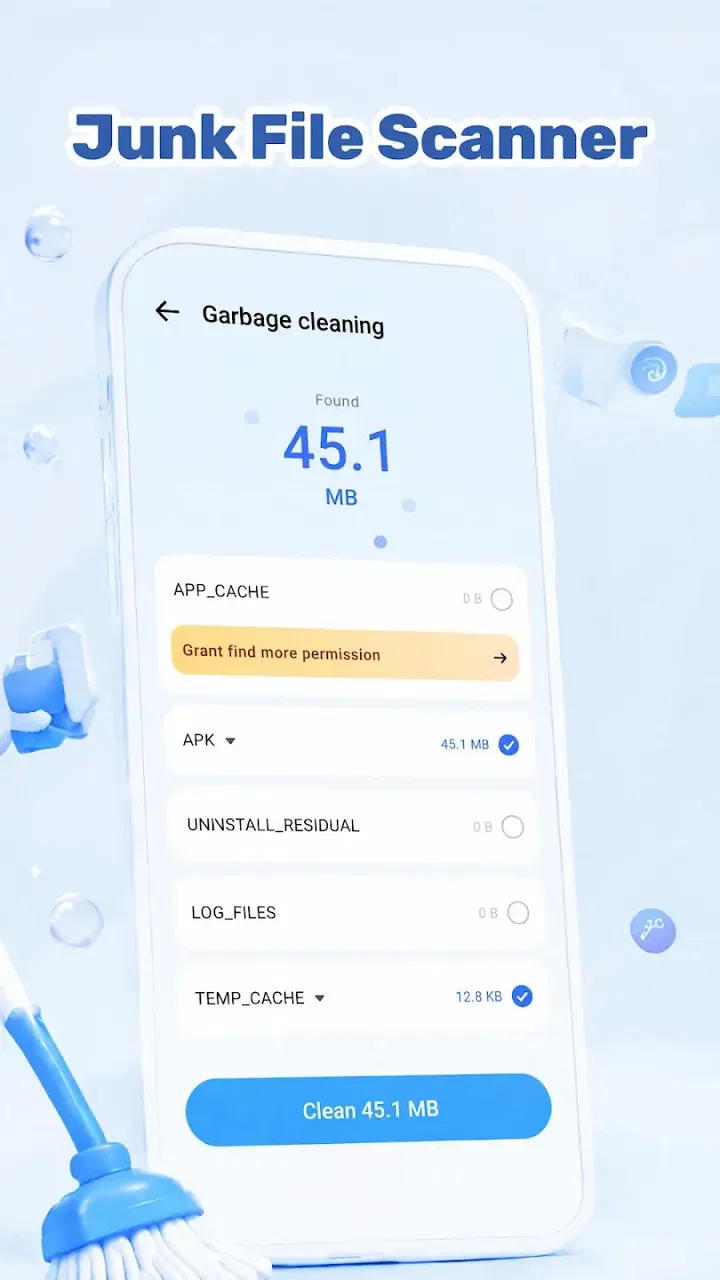
After installing, I recommend taking a moment to look at the app’s opening screen before starting a scan. The first useful habit is to identify what the app is asking you to review, rather than treating the largest displayed number as an instruction. A large amount of removable material may include items you still want, while a smaller result may contain exactly the clutter you have been meaning to remove.
Keep your first session narrow. Instead of trying to reorganize the entire phone, begin with one familiar problem: old downloads, unused apps, or the residue left by a busy week of browsing. This makes it easier to notice what Turbo Cleaner is actually showing and reduces the chance of removing something you later need. It also gives you a clear before-and-after feeling without relying on an exaggerated promise.
For a first-time user, the safest routine is simple:
Open the cleanup area and let the app present its findings.
Read the labels around the suggested items instead of selecting everything immediately.
Uncheck anything whose purpose is unclear or whose contents you may still need.
Complete one small cleanup, then check the phone’s storage and the apps you use most.
This approach is slightly slower than tapping the biggest action button, but it gives you control. It is especially important on a shared device, where another person’s downloads or saved media may look disposable to you while being important to them.
Finding the first meaningful success
The most reassuring first result is not necessarily the biggest space recovery. For me, a better first win is removing a clearly obsolete group, such as files from a completed trip or installers for apps that were already set up. That kind of cleanup proves the workflow without making you wonder whether an important personal file disappeared.
Once the results are visible, scan for context. A filename, location, or recognizable group can tell you much more than a total. If a recommendation consists of items you deliberately saved, leave it alone. If it contains remnants you recognize as temporary or irrelevant, that is a strong candidate for your first action.
After confirming a small batch, pause and open the related app or folder if you are uncertain. This is one of the practical trade-offs with any cleaner: convenience comes from grouping items for you, while accuracy depends on your own knowledge of what matters. Turbo Cleaner can shorten the search, but it cannot know whether a screenshot is a treasured memory, a work reference, or junk.
The app organization side is useful when your device has become a collection of experiments. I found it more helpful to think in terms of decisions than inventory. Ask which apps you still recognize, which ones you have not opened in a long time, and which ones duplicate a function already handled well by another app. Removing an app is not only about storage; it can also reduce notification noise and make the home screen easier to navigate.
One non-obvious tip is to use cleanup and app organization as separate sessions. If you do both at once, it becomes harder to remember what changed when something behaves differently later. Clean files first, confirm the phone still feels normal, and only then review apps. That staged workflow is slower, but it makes troubleshooting much easier.
Where first-time users may hesitate
The word “junk” can create false confidence. On a phone, an item may look unimportant while still serving as an offline copy, a saved attachment, or a file another app expects to find. I would be particularly careful with media, documents, and anything whose name does not immediately make sense. A cleaner is helpful precisely because it reduces clutter, but reduced clutter is not the same as automatic safety.
Another common confusion is the difference between clearing leftover files and uninstalling an app. Removing an app can affect saved settings, downloaded content, or access to information stored locally. If Turbo Cleaner presents apps for organization, I would use that view to decide what deserves attention, then consider whether the app’s own settings offer an export or backup option before removing it.
It is also easy to assume that a cleaner will make every phone faster. Storage relief can make a crowded device feel more manageable, especially when the lack of space is causing everyday friction, but it is not a universal performance cure. If your real problem is a failing battery, a weak network connection, or one badly behaved app, repeated cleaning may not address the cause.
That limitation is important for realistic expectations. I would not run a cleanup repeatedly just because the app makes maintenance feel satisfying. Frequent scans can become a habit without producing meaningful improvement. A better practice is to open it when you notice an actual symptom: storage warnings, a messy downloads area, too many unused apps, or difficulty finding something you need.
A practical routine for everyday phones
Imagine taking a weekend trip and returning with several navigation tools, restaurant apps, screenshots, downloaded tickets, and a handful of temporary files. A few days later, the phone feels untidy, but you do not want to manually inspect every folder. Turbo Cleaner can serve as the first pass: review the cleanup suggestions, keep travel documents and memorable photos, remove items that have served their purpose, and then examine the apps you installed only for the trip.
The important detail is timing. Do not clean before you have finished using the information. A boarding pass, map area, or reservation document may be unnecessary later but essential during the journey. This is a good example of why I prefer a review-first workflow. The app can help surface candidates, while the calendar and your own context decide when they are truly disposable.
A second useful scenario is a phone used for work and personal life. App organization can help separate tools you use every day from one-off utilities, but I would avoid removing anything connected to authentication, communication, or local work files until I have checked how that app stores its information. The convenience of a cleaner should never outweigh access to something important.
For a parent managing a child’s device, the app may be useful as a guided conversation rather than an invisible maintenance tool. Go through the suggestions together and explain why some files stay and others go. That turns cleanup into a practical lesson about downloads, storage, and app ownership. It also avoids the trust problem created when someone discovers that personal content was erased without discussion.
One advanced but simple technique is to create a “review later” mindset for ambiguous items. If you are unsure, do not force a decision during the first pass. Check the relevant app, open the file, or wait until you know whether it is still needed. The strongest cleanup results come from confident removals, not from maximizing the number of deleted items.
How it compares with familiar alternatives
Android’s built-in storage controls are the natural alternative. They are already part of the operating system and can be preferable when you want the most direct route to app storage, permissions, or system-level details. I would choose those controls for precise troubleshooting, especially when one particular app is consuming space or behaving badly.
A file manager is better for people who think in folders and want to move, rename, copy, or inspect individual files. It gives you more responsibility but also more visibility. Turbo Cleaner is the friendlier choice when you do not want to wander through several directories looking for forgotten material, provided you are willing to review its groupings before acting.
Dedicated storage analyzers can be stronger when the question is “what is taking the most room?” They may offer more detailed visual breakdowns or folder-level investigation. Turbo Cleaner’s appeal is narrower and more approachable: it brings cleanup and app organization into one maintenance-oriented experience rather than asking you to become a storage detective.
Manual cleanup remains the most cautious option. It takes longer, but it is ideal for a phone containing irreplaceable photos, work documents, or complicated offline data. I would also favor manual checks if you have already experienced accidental deletion or if several people share the device. In those situations, the extra effort buys confidence that a quick utility cannot provide.
Who should use it, and who should skip it
I can recommend Turbo Cleaner to someone who wants a clear starting point for routine phone housekeeping, especially if the built-in menus feel scattered or intimidating. It is also a sensible trial for users who frequently accumulate downloads and installed apps, then forget to revisit them. The free model lowers the barrier to testing whether its organization style suits you.
I would be more cautious recommending it to power users who already maintain a precise folder system and know Android’s storage tools well. They may find an additional layer unnecessary. People who need forensic-level detail, automated backup, or a specialized duplicate-photo workflow should also look elsewhere rather than expecting this app to cover every storage task.
The age rating of Everyone makes it broadly approachable, but that does not remove the need for supervision on a shared or family phone. The person approving a cleanup still needs to understand the device’s contents. Accessibility for a general audience is not the same as permission to make unreviewed deletions.
My way of getting lasting value from it
I would use the app as a periodic checkpoint, not as a permanent background ritual. Start with a small, recognizable cleanup, verify the result, and then use the app organization view to question installations that no longer have a clear purpose. That sequence produces a cleaner phone without turning maintenance into a stressful project.
Before removing an app, I ask three things: do I know what it stores locally, can I access the same information another way, and would reinstalling it restore what I need? Those questions are especially valuable for games, note-taking tools, travel apps, and work utilities. They add a few seconds to the process and prevent the most frustrating kind of cleanup mistake.
I also recommend leaving personal media out of a rushed first session. Photos and videos often carry more value than their filenames suggest, and a small amount of recovered space is not worth losing something memorable. Handle those files manually when needed, while letting Turbo Cleaner focus on items you can identify with confidence.
After using it, check whether the phone’s real problem improved. Did you gain enough room to install an update? Is the downloads area easier to search? Are unused apps no longer distracting you? If the answer is yes, the app has done its job. If nothing changed, repeating the same scan is unlikely to solve the underlying issue; investigate the largest apps, media libraries, or system settings directly instead.
The best result comes from treating Turbo Cleaner as a decision aid, not an automatic delete button. That distinction captures both its strength and its main limitation. JTR Labs has made a free, approachable tool for people who want help beginning the cleanup process, and the combination of file sweeping with app organization is practical for everyday clutter.
My final opinion is positive but measured. I would keep it in mind for a crowded Android phone where the owner wants guidance rather than a technical deep dive. I would not use it blindly, and I would choose a file manager or built-in storage controls when precision matters more than convenience. For a first-time user, the safest path is to begin with one clearly disposable group, confirm the outcome, and build trust gradually. Used that way, Turbo Cleaner can turn an intimidating storage problem into a manageable maintenance habit.
FAQs for Turbo Cleaner
01What is Turbo Cleaner and what does it do?
Turbo Cleaner is an Android cleaning and optimization app designed to help users manage unnecessary files, cached data, leftover installation packages, and other items that may occupy storage space. It may also include tools for monitoring memory usage, managing applications, and improving general device maintenance. Results can vary depending on your phone, Android version, and how much removable data is present.
02Is Turbo Cleaner safe to use on my Android phone?
Turbo Cleaner can be useful when its recommendations are reviewed carefully before anything is deleted. As with any cleaner, users should check the selected files and permissions, because removing app data or files from shared folders may affect saved settings, downloads, or personal content. Download it from a trusted source, review its privacy policy, and avoid granting permissions that do not appear necessary for the features you intend to use.
03Can Turbo Cleaner really make my phone faster?
Turbo Cleaner may make a phone feel more responsive when storage is nearly full, temporary files have accumulated, or background applications are consuming excessive resources. However, it cannot upgrade the device’s hardware or guarantee a permanent speed increase. Android already manages memory automatically, so repeatedly closing applications may provide little benefit and can sometimes increase battery usage when those apps restart.
04Does Turbo Cleaner delete photos, videos, or important files?
Turbo Cleaner should not be used without checking its scan results first. Cleaning tools commonly identify cache files, residual data, large files, duplicate items, or unused applications, but the exact categories depend on the app version and device permissions. Before confirming a cleanup, review file names and locations, keep backups of important photos and documents, and avoid deleting anything whose purpose is unclear.
05Is Turbo Cleaner free, and does it contain advertisements or subscriptions?
Turbo Cleaner may be available as a free download, but free versions of cleaning apps often include advertisements, optional premium features, or subscription offers. The available tools, limits, and pricing can change between versions and regions. Before starting a trial or purchase, read the Google Play listing carefully and check the subscription terms, renewal conditions, and cancellation process so there are no unexpected charges.
Pros
- Quickly identifies junk files and unused data
- Simple interface that is easy for first-time users
- Includes tools for managing large files
- Can help free storage space with minimal effort
- Provides basic device maintenance features in one app
Cons
- Some cleaning results may require manual review
- Aggressive cleanup suggestions can be inconvenient
- Extra features may be limited without upgrades
- Ads can interrupt the cleaning experience
- Performance benefits may vary between devices

Turbo Cleaner
Gallery